
EventIDE Installation
In this article:
EventIDE is distributed as a Windows installer package and can be installed on any supported Windows computer. This section explains how to obtain the installation package, install the software, and perform the initial setup.
Downloading EventIDE
Requesting Download Link
To obtain EventIDE, first request access to the installation package:
Complete the Request Trial form on the OkazoLab website.
A member of the OkazoLab team will send you a download link by email.
The download link remains valid for 7 days.
Note: Download links can only be opened on a Windows computer because the download service requires a Microsoft account.
Generating Download Link Directly from EventIDE
If you already have EventIDE installed on another computer, you can generate a new download link directly from the application:
Open Application Menu → Updates.
Browse the list of available EventIDE versions.
Generate a download link for either:
Installer version
Portable version

If you have an EventIDE license, ensure that the selected version falls within your active update subscription period. You can verify your subscription period through Application Menu → License.
Downloading the Installation Package
After obtaining the download link:
Ensure that at least 1 GB of free disk space is available before downloading.
Open the download link in your web browser.
Click Download to download the installation package.
Wait for the download to complete.

Depending on your internet connection, downloading may take several minutes.
Tip: If the download is interrupted, most browsers allow you to resume it from the Downloads menu.
Installing EventIDE
Once the download is complete, locate the downloaded installation file and double-click the file to start the installation. If Windows displays a security warning indicating an Unknown Publisher, click Run to continue.

The EventIDE Setup Wizard will guide you through the installation process.
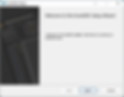
Click Next on the welcome screen.
Read and accept the End User License Agreement, click Next to continue.

The Custom Setup page allows you to choose which components to install:
Component | Description |
EventIDE Core | Main application and runtime environment. Required for all installations |
Demos and Templates | Example experiments and templates that can be used for learning and development. |
Click the icon next to each feature to select whether it should be installed.
After selecting the desired components, click Next.

When Windows displays the User Account Control dialog asking:
"Do you want to allow this app to make changes to your device?"
Click Yes.
On the Ready to Install EventIDE page optionally enable Add a desktop shortcut and click Install.
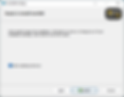
The installer will copy the required files and configure the application. Installation may take several minutes depending on your system.

Once the installation is complete, click Finish to exit the Setup Wizard.
